
Windows
Windows 10 and Windows 11 computers
Download for WindowsDownload Splashtop SOS only when a BITS Melbourne technician has asked you to. The temporary session lets us view and assist with your device while you remain in control.
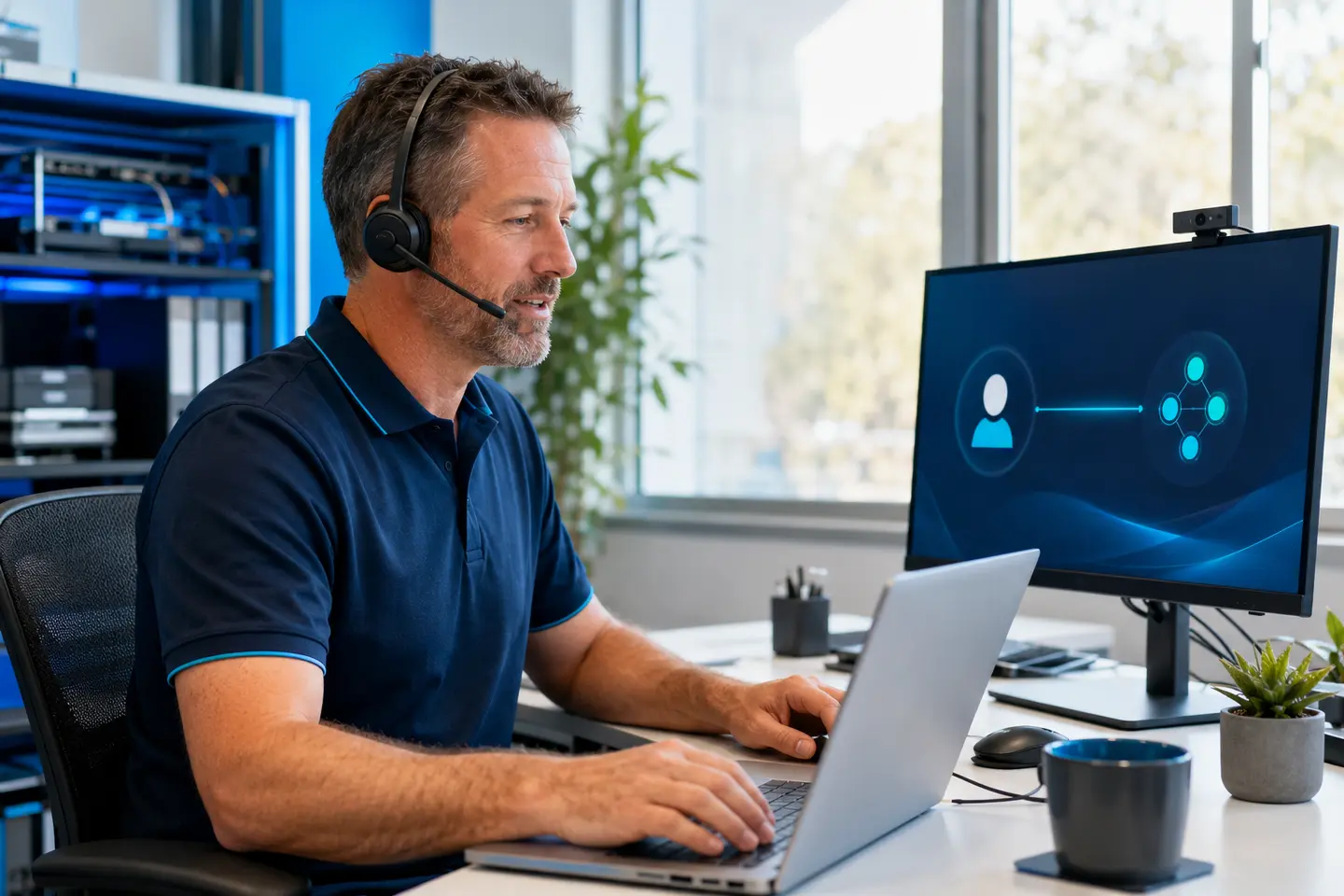
Do not download remote-access software or share a session code unless you initiated the support request or have confirmed the technician by calling BITS Melbourne directly on 03 9125 4090. There are many remote-support scams—when in doubt, stop and call us.
These links open the official Splashtop downloads and mobile app stores.
Windows 10 and Windows 11 computers
Download for WindowsmacOS laptops and desktop computers
Download for MacAndroid phones and tablets
Open Google PlayApple iOS and iPadOS devices
Open App StoreStay at your computer and keep the support window open while we connect.
Choose the correct version above and open the downloaded Splashtop SOS application.
The app displays a temporary session code. Give it only to the confirmed BITS Melbourne technician.
Follow the prompts required by your device and remain present while remote support is active.
Close Splashtop SOS when the technician confirms the work is complete. The temporary session then ends.
If a download will not open, your code is not appearing or you are unsure whether a request is legitimate, call us before continuing.